Work the inbox
Read the notification inbox in its order, open each entry where it happened, and mark read or clear what you have handled.
What you'll have
An inbox worked down to the entries that still need you, each one opened in the place it came from.
The inbox opens from Notifications in the workspace header. The same list
is a full page at /activity, which is where the digest email links.
The panel and the page show the same entries in the same order:
- A status chip for your running automation, when Crusible reports one, for
example
Cruising · 3 tasks running
. - The toolbar: the All and Unread filter, then Mark all read and Clear all.
- Items that last only while the app is open, such as a failed action or an incoming call. They stay unread until they leave the list.
- Stored notifications, newest first.
- Load more, when older notifications exist.
An entry about your own long-running work leads with a state mark. An entry about something another person or an agent did leads with that actor’s avatar.
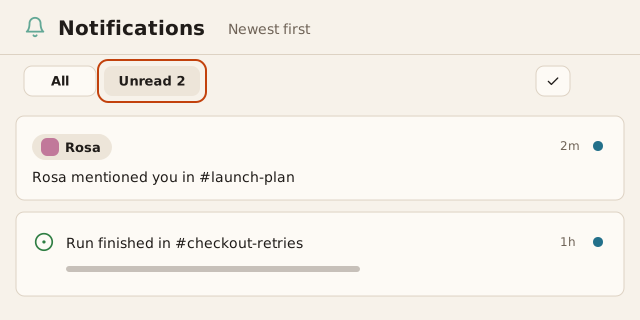
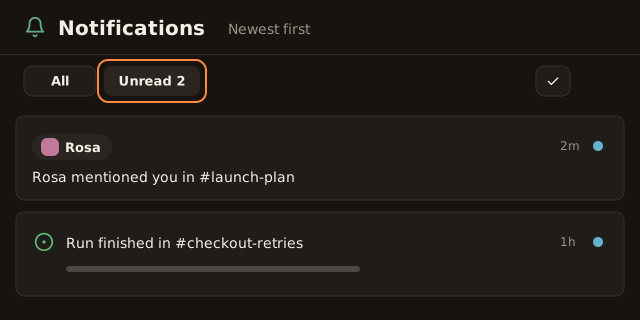
Select Notifications in the workspace header. To work from a full page, open
/activityinstead.Result The Notifications panel opens and lists your entries, newest first.
Select Unread in the filter.
Result Only unread entries remain, and the filter shows their count.
Select an entry’s title. An entry that groups more than one event expands in place instead. Select Show more to list the rest of the group.
Result The entry's channel, message or resource opens, and Crusible marks the entry read.
To mark one entry read without opening it, select the unread dot at the end of its row.
Result Crusible marks the entry read and you stay in the inbox.
Select Mark all read to mark every entry read. Select Clear all to archive the whole list. Clear all deletes nothing.
Result A status line confirms how many notifications changed.
If this doesn't work
If the list shows
Couldn't load notifications
, select Try again. If Mark all read or Clear all fails, the list returns to its previous state. An entry markedNowhere to open yet
has no destination to open. Opening an entry still requires access to its target. Ask a channel owner for access if the destination refuses you.
The Unread filter shows All caught up
when nothing
unread remains. Entries you marked read stay under All until you clear them.