Secure your sign-in
Confirm it's you before a protected change, and get back in after you lose your authenticator app.
What you'll have
A protected change confirmed with your password and second factor, or a lost authenticator reset by two administrators.
Crusible asks you to confirm it’s you before a protected change. In Settings, resetting an SSO connection opens this prompt. Settings has no page to add an authenticator app or a passkey. An authenticator app or passkey that your account already holds works in the prompt.
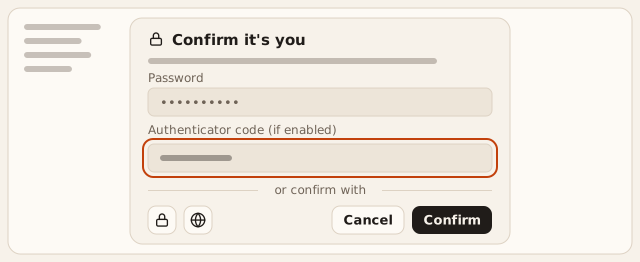
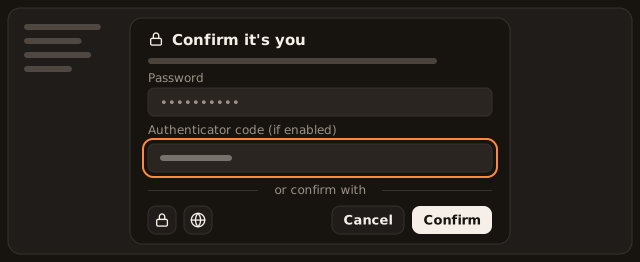
Start the protected change. For example, choose Reset connection in SSO settings.
Result The **Confirm it's you** dialog opens over the action you started.
Enter your Password. If your account has an authenticator app, enter its code in Authenticator code (if enabled).
Result **Confirm** becomes available once the password field holds a value.
To confirm another way, choose Use passkey or Continue with identity provider under or confirm with. Use a method only when your account has it.
Result Crusible shows **Waiting for identity provider** or waits for your device.
Select Confirm. Crusible accepts the confirmation for 30 minutes. Another protected change in that window doesn’t ask again. Signing out ends the window.
Result The dialog closes and the protected change continues.
If this doesn't work
Select Cancel to stop without making the change. If you see
Allow pop-ups to verify with your identity provider.
, allow pop-ups for Crusible and try again. After too many attempts, wait for the time the dialog shows before you retry. If you have lost your authenticator app, ask your organisation owner to reset it.
Reset a member’s authenticator app
There is no self-service reset for a lost authenticator app. Your organisation owner or an administrator resets it from the member’s profile. A reset takes two different administrators. Nobody can reset their own authenticator app.
- Open Directory in Settings and open the member’s profile.
- Select Reset MFA. Crusible records the request and shows
MFA reset requested. Another administrator must approve it by choosing Reset MFA for this member.
- A second owner or administrator opens the same profile and selects Reset MFA within 24 hours.
Crusible shows
Multi-factor authentication reset.
The reset turns off the member’s authenticator app and invalidates their recovery codes. It also signs the member out of every session. The member’s passkeys stay registered. Reset MFA appears only for an active member who has a second factor turned on.